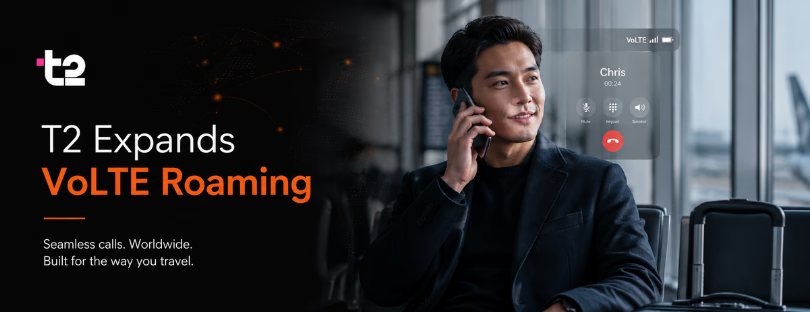
How to Turn On Roaming
 Roaming is a feature that allows you to use your cellular data plan in a different country than the one you signed up for.
This can be useful if you’re traveling internationally and want to stay connected to the internet, but it’s important to understand how roaming works and the potential costs involved before you turn it on.
What is Roaming?
When you’re in your home country, your phone uses the cellular network of your carrier. However, when you travel to a different country, your phone will need to connect to a different network in order to get service. This is where roaming comes in – it allows your phone to connect to a different network and use its data plan.
How to Turn On Roaming
The steps for turning on roaming will vary depending on your phone and carrier. However, the general process is as follows:
Android
- Open the Settings app.
- Tap on Network & Internet.
- Tap on Mobile Networks.
- Tap on Data Roaming.
- Toggle the Data Roaming switch to the On position.
iOS
- Open the Settings app.
- Tap on Cellular.
- Tap on Cellular Data Options.
- Tap on Data Roaming.
- Toggle the Data Roaming switch to the On position.
COSTS OF ROAMlNG
International connectivity can be expensive, so it’s important to understand the potential costs involved before you turn it on. Your carrier will likely charge you a per-minute rate for data usage while roaming, and the rates can be very high. In addition, your carrier may also charge you a monthly fee for international connectivity.
HOW TO AVOID HIGH ROAMlNG COSTS
There are a few things you can do to avoid high roaming costs:
- Check with your carrier before you travel to see what their international connectivity rates are.
- Consider getting an international connectivity plan from your carrier. These plans typically offer lower rates than standard international connectivity rates.
- Use Wi-Fi whenever possible. Wi-Fi is free and doesn’t count against your data plan.
- Turn off roaming when you’re not using it. This will prevent your phone from using data without your knowledge.
Troubleshooting Roaming Issues
If you’re having trouble with international connectivity, there are a few things you can try:
- Make sure that international connectivity is turned on.
- Check your phone’s signal strength. You may need to move to a different location with a stronger signal.
- Try restarting your phone.
- Contact your carrier for help.
Here are some additional tips:
- If you’re not sure whether you’ll need to use international connectivity, it’s best to err on the side of caution and turn it on. You can always turn it off later if you don’t need it.
- If you’re only going to be in a foreign country for a short period of time, you may want to consider getting a prepaid international SIM card. This can be a more cost-effective option than using roaming.
- Be aware of the data limits on your international connectivity plan. If you exceed your data limit, you may be charged additional fees.
- Keep an eye on your bill to make sure there are no unexpected charges.
Conclusion
Roaming can be a useful feature when you’re traveling internationally, but it’s important to understand how it works and the potential costs involved before you turn it on. By following the tips in this article, you can avoid high international connectivity costs and stay connected to the internet while you’re traveling.