How to Transfer eSIM to New iPhone
That moment when your new iPhone is in hand and your old one still holds your mobile line, is where setup gets real. If you need to transfer eSIM to a new iPhone, the process can be fast – or surprisingly messy – depending on your carrier, your iOS version, and whether your old device is still working.
For travelers, frequent flyers, and anyone who relies on mobile data the second they land, this is not a minor setup detail. It affects whether you can receive one-time passcodes, use banking apps, and stay reachable while moving between airports, hotels, and meetings. Apple has made the transfer process easier, but carriers still control a big part of what happens behind the scenes.
What transferring eSIM to a new iPhone really means
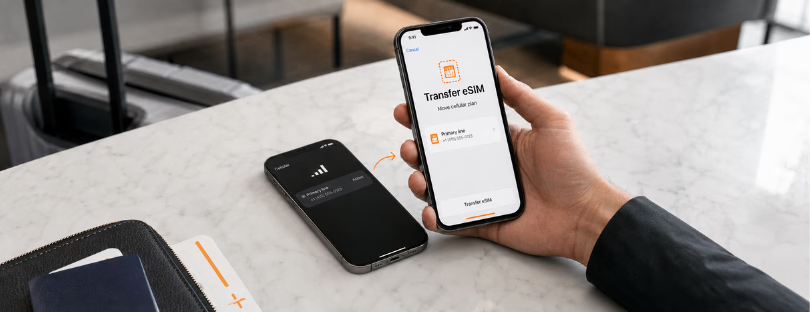
When people say they want to transfer eSIM to a new iPhone, they usually mean moving their primary cellular line from one device to another without visiting a store or waiting for a physical SIM. On newer iPhones, Apple supports this directly during setup in many cases. You may see options like transferring from a nearby iPhone or converting a physical SIM to a digital one.
The catch is that this only works cleanly when your carrier supports Apple’s transfer flow. Some carriers allow direct device-to-device migration in minutes. Others still require app-based activation, a QR code, a carrier confirmation step, or manual approval on the back end. So while Apple provides the front-end experience, the mobile operator still decides how frictionless it will be.
Before you transfer the eSIM to a new iPhone
A little prep saves a lot of frustration. Both iPhones should be updated to the latest iOS version available to them, connected to Wi-Fi, and signed in with the correct Apple ID where required. Bluetooth should be on, and the old iPhone should stay nearby, unlocked, and powered on during setup.
You should also confirm your carrier account details before starting. If your line is tied to extra security checks, such as a carrier PIN or two-factor authentication sent by text, losing service mid-process can slow everything down. This matters even more if your phone number is tied to banking, corporate logins, or travel reservations.
If the old iPhone is lost, damaged, erased, or already traded in, the transfer becomes less of an Apple setup task and more of a carrier activation issue. In that case, you may need to log into your carrier account or contact support to reprovision the line on the new device.
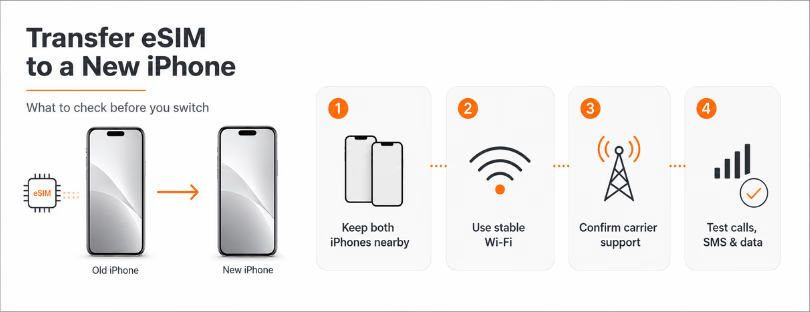
How to transfer eSIM to a new iPhone during setup
For most users, the easiest route is during initial iPhone setup. After powering on the new device and beginning Quick Start, Apple may prompt you to move your cellular plan from a nearby iPhone. If your carrier supports it, you select the number you want to transfer, confirm on the old iPhone, and wait for activation on the new one.
This is the best-case scenario because it keeps the process inside Apple’s setup flow. You do not need to scan anything, and you usually do not need to contact your carrier. Once the line activates on the new iPhone, it stops working on the old one.
Still, the best case is not a universal case. Some users see the option immediately. Others never see it at all, even with compatible devices. That usually points to carrier support limitations rather than a hardware problem.
Transfer after setup if you skipped the prompt
If you have already finished setting up the new iPhone without moving the line, you may still be able to do it manually. Go to Settings, then Cellular, then Add Cellular Plan. If supported, Apple may show an option to transfer from a nearby iPhone.
From there, the steps are similar. Keep the old iPhone close, approve the transfer, and wait for the line to activate. If the option does not appear, your carrier may require activation through its own app, website, or customer support channel.
This is where a lot of confusion starts. Users often assume the iPhone is missing a feature when the real issue is that carrier provisioning rules differ widely. In telecom terms, the digital SIM profile is not just copied across devices. It is reissued and linked to the new device credentials.
Why transfers fail or stall
The most common problem is simple: carrier support is partial, inconsistent, or delayed. A transfer may be available for consumer accounts but not business accounts. It may work for one plan type but not another. It may also depend on whether fraud checks trigger when a number moves to a new device.
Activation can also fail if the old iPhone no longer has a stable connection, if iOS is outdated, or if the carrier’s provisioning platform is having issues. Some users get stuck on activating for several minutes, then see a failure message. Others think the process is broken when it is really just delayed on the operator side.
If that happens, first restart both devices and try again on Wi-Fi. If the line disappears from the old phone but does not activate on the new one, check whether your carrier app shows the line assigned to the new device. If not, you may need manual help.
Carrier support matters more than Apple marketing suggests
Apple presents mobile plan transfer as a polished native feature, and often it is. But the industry reality is more uneven. Carriers still have different entitlement systems, fraud controls, and provisioning stacks. Some have modernized activation flows. Others are still stitching together older infrastructure.
That matters to consumers because setup reliability varies. It matters even more to travel and telecom professionals because it shows how digital onboarding remains partly a carrier operations issue, not just a handset feature. The user sees an iPhone screen. The actual success depends on the operator’s readiness for remote provisioning at scale.
For enterprise mobility teams, this is a useful reminder. Device refresh programs can look simple on paper, but line migration can create downtime if carrier workflows are not standardized across markets or account types.
If you use multiple lines
Many iPhone users now run more than one line, especially business travelers who separate work and personal numbers or keep a second plan for international use. In those cases, you need to verify exactly which line is moving and how the labels appear on the new device.
Apple lets you name lines and choose defaults for voice, messaging, and data. After the transfer, check those settings carefully. A new iPhone may activate the line successfully, but assign the wrong default for data or outgoing calls. That is less a technical failure and more a configuration trap.
This is also why it is smart to complete the transfer before travel, not at the gate or after landing. Even a successful activation can leave you sorting through default line settings when you need connectivity immediately.

What to do if your old iPhone is gone
If the old device is unavailable, you can still get your line onto the new iPhone, but you will likely need carrier intervention. Start in Settings under Cellular to see whether your plan can be added directly. If not, open your carrier app or account portal. Some operators let you reactivate the line on a new device after identity verification.
If they do not, support may need to issue a new activation profile. That can be instant, but it can also involve security reviews, especially after device theft or account changes. If your number is critical for authentication, consider setting up backup verification methods before switching devices.
A few practical checks after activation
Once the transfer is complete, do not stop at seeing signal bars. Place a call, send a text, and confirm mobile data works with Wi-Fi turned off. Check iMessage and FaceTime activation too, because they can lag behind the line transfer.
If you rely on your phone for travel logistics, test the essentials right away: airline apps, banking login codes, rideshare access, and any corporate authenticator tied to your number. This takes two minutes and can save you from a problem that only shows up when you are already in transit.
The bigger picture for mobile onboarding
The ability to transfer eSIM to a new iPhone is part of a broader shift in mobile service delivery. Activation is moving away from plastic cards and retail counters toward software-based provisioning, identity checks, and remote account control. That is better for convenience, but it also exposes how much customer experience depends on carrier systems that consumers never see.
For travelers, the benefit is obvious when everything works. Device upgrades become faster, borderless, and less dependent on store visits. For operators and travel-tech businesses, the takeaway is just as clear: digital connectivity is now a service experience, not just a network product.
If you are upgrading soon, do the transfer while you still have both phones, stable Wi-Fi, and ten quiet minutes. That is usually the difference between a clean handoff and an avoidable support session.